Password protected notes are the simplest way to keep private text – a draft letter, a list of account numbers, personal thoughts – away from anyone who picks up your laptop or opens the wrong browser tab. But "password protected" can mean very different things depending on the tool. Some apps only hide a note behind a screen lock, while others actually encrypt it so that nobody, not even the company running the service, can read it.
This guide explains the difference in plain English, shows you how to lock a note in a few seconds, and covers the habits that keep protected notes safe in practice.
What "password protected" can actually mean
When an app says your notes are protected, it usually means one of three things. Knowing which one you are getting tells you how much you can trust it.
1. A lock screen (access control)
The note is stored as normal, readable text, and the app simply asks for a password or PIN before showing it. This stops a curious family member, but the text itself is not scrambled. Anyone with access to the underlying storage – or to the company's servers – can still read it.
2. Server-side encryption
The note is encrypted while it sits on the provider's servers, but the provider holds the keys. This protects against some kinds of data theft, yet the service can still decrypt your notes when it needs to, for example to display them or to comply with a request.
3. Client-side (end-to-end) encryption
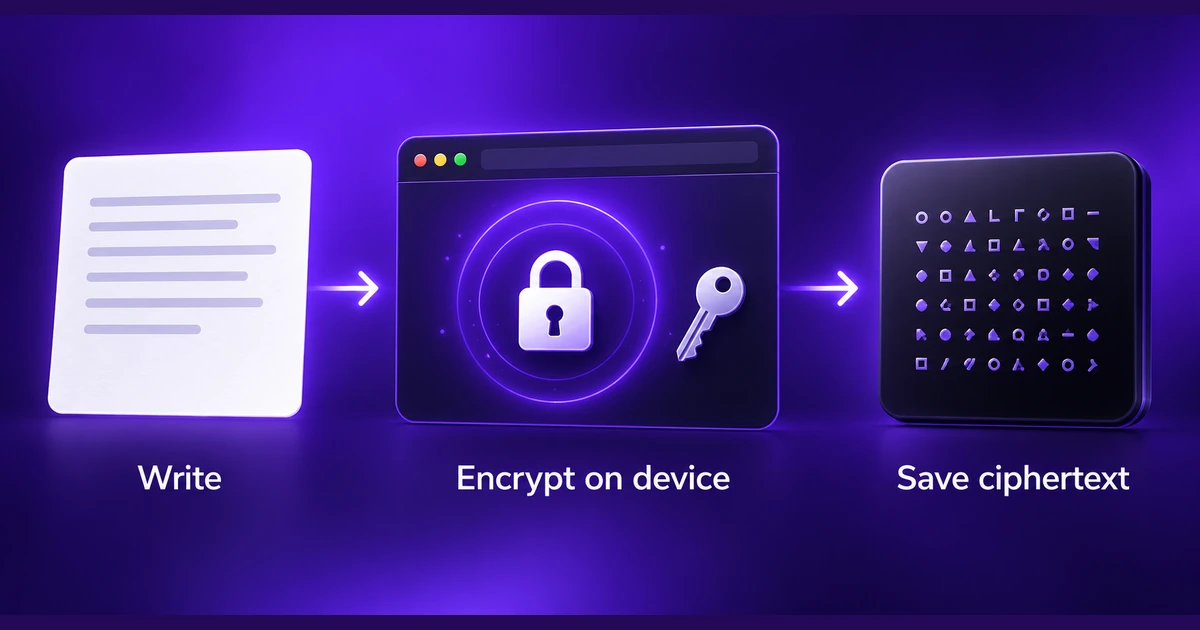
The note is encrypted on your device, inside your browser, before it is saved anywhere. Only the scrambled version is stored. The key is derived from a password that never leaves your device, so the service never sees the readable text. This is the strongest option for private notes, and it is how Notepadle's protected notes work.
How client-side encryption works, step by step
You don't need to be a cryptographer to understand the basics. Here is what happens when you lock a note in a well-built online notepad:
- You choose a note password. It is typed into your browser and stays there.
- A key is derived from the password. The browser runs the password through a key-derivation function (Notepadle uses PBKDF2 with SHA-256 and a random salt). This step is deliberately slow, which makes guessing passwords by brute force far more expensive.
- The note is encrypted. The browser encrypts the text with AES-256, a widely trusted encryption standard, using the derived key.
- Only ciphertext is saved. What gets stored – in your browser or in your synced account – is unreadable data. Without the password, it is just noise.
- Unlocking reverses the process. When you enter the password again, the browser re-derives the key and decrypts the note locally.
The important consequence: because the password is never stored, a forgotten note password cannot be recovered. That is not a missing feature; it is proof that nobody else holds a copy of your key.
How to password protect a note in Notepadle
Locking a note takes a few seconds and works both as a guest and with a free account:
- Open the online notepad and create a new note (or press Alt + N).
- Write your note and give it a title you won't mind others seeing – titles help you find notes, so keep the sensitive part in the body.
- Open the note's menu and choose Protect with password, then enter and confirm your password.
- Save. The note is now encrypted; opening it again will ask for the password.
If you use a free account, the encrypted version syncs to your other devices, and you unlock it there with the same password.
What to keep in password protected notes (and what not to)
Encrypted notes are a good fit for information that is private but not catastrophic if you lose it:
- Journal entries and personal reflections
- Gift ideas, surprise plans and private to-do lists
- Draft messages you're not ready to send
- Wi-Fi details for your home or office
- Notes from sensitive meetings or one-to-ones
For your most critical secrets – the master password to your bank, recovery codes for your main email – a dedicated password manager is still the better tool. Password managers are built for that job, with features like breach alerts, secure autofill and emergency access. Think of encrypted notes as a private drawer, and a password manager as a safe.
How to choose a strong note password
Encryption is only as strong as the password behind it. A short or common password can be guessed, no matter how good the algorithm is.
- Use a passphrase. Four or five unrelated words ("lantern oyster gravel monday") are long, hard to guess and easier to remember than random symbols.
- Don't reuse your account password. Your note password should be different from your Notepadle sign-in password and from passwords you use elsewhere.
- Avoid personal details. Birthdays, pet names and favorite teams are the first things an attacker tries.
- Store it somewhere safe. Because it can't be reset, keep the note password in your password manager or another secure place you trust.
Common mistakes that undo the protection
Putting secrets in the title
Titles and tags are what you see in your note list, so they are best kept generic ("Insurance details" rather than the policy number itself).
Leaving a copy unprotected
If you paste sensitive text into a protected note, delete the original unprotected note too – and empty it from the Note Bin. Exported plain-text files (.txt) are also unencrypted, so store backups somewhere safe.
Using a shared or public computer
Encryption protects stored data, but it can't protect what is on screen or what a compromised computer records as you type. Avoid unlocking private notes on library or hotel computers.
Forgetting to lock your device
Once a note is unlocked and open, anyone at your keyboard can read it. Close the note when you step away, and use a screen lock on your device.
Guest notes vs. account notes: does it change security?
As a guest, Notepadle keeps notes in your browser's local storage on that one device. With a free account, notes are stored on our servers so they can sync. In both cases, a password protected note is encrypted in your browser first, so only the encrypted version is ever saved. If you want to understand the trade-offs between browser-based notepads and installed apps more broadly, read our comparison of online notepads and notes apps.
A quick checklist
- Use a tool that encrypts notes on your device, not just behind a lock screen.
- Pick a long passphrase that you don't use anywhere else.
- Keep sensitive details out of titles and tags.
- Delete unprotected copies and old exports.
- Save the note password somewhere safe – it can't be reset.
Good security is mostly good habits. Pair encrypted notes with the everyday routines in our guide to taking better notes online, and your private notes will stay both organized and private.
Frequently asked questions
Are password protected notes really secure?
It depends on how the protection works. Notes that are encrypted in your browser with a strong algorithm such as AES-256, using a key derived from your password, are very secure as long as your password is strong and your device is not compromised. A simple lock screen without encryption offers much weaker protection.
Can Notepadle read my protected notes?
No. Protected notes are encrypted in your browser before they are saved, and your note password is never sent to our servers. We only ever store the encrypted data, which we cannot decrypt.
What happens if I forget my note password?
The note cannot be recovered. Because the password is never stored anywhere, there is no reset option. Keep note passwords in a password manager or another safe place.
Do I need an account to password protect a note?
No. You can create and lock notes as a guest. A free account adds syncing, so the encrypted note is available on your other devices too.
Is a protected note the same as a password manager?
Not quite. Protected notes are great for private text such as journal entries or meeting notes. For logins, recovery codes and other critical credentials, a dedicated password manager is the better choice.