Sometimes you just need somewhere to type – right now, without creating yet another account. An online notepad without sign up lets you open a page and start writing immediately. It's perfect for quick lists, copied snippets, phone numbers, drafts and anything else you don't want to lose in the next ten minutes.
But "no sign-up" raises a fair question: if you never created an account, where do your notes actually go? This guide explains how guest notes work, what browser storage is good (and bad) at, and the simple habits that keep guest notes safe.
Why people want a notepad without an account
Account sign-ups are friction. They ask for an email address, a password and often a confirmation step before you've written a single word. For many everyday tasks that's overkill:
- Jotting down a number or address during a phone call
- Cleaning up text before pasting it elsewhere (stripping formatting from a web page, for example)
- Drafting a message or social post
- Keeping a temporary to-do list for the day
- Writing on a work computer where you don't want to install anything
There's also a privacy angle: if you never give an email address, there's less personal data tied to what you write.
Where guest notes are saved
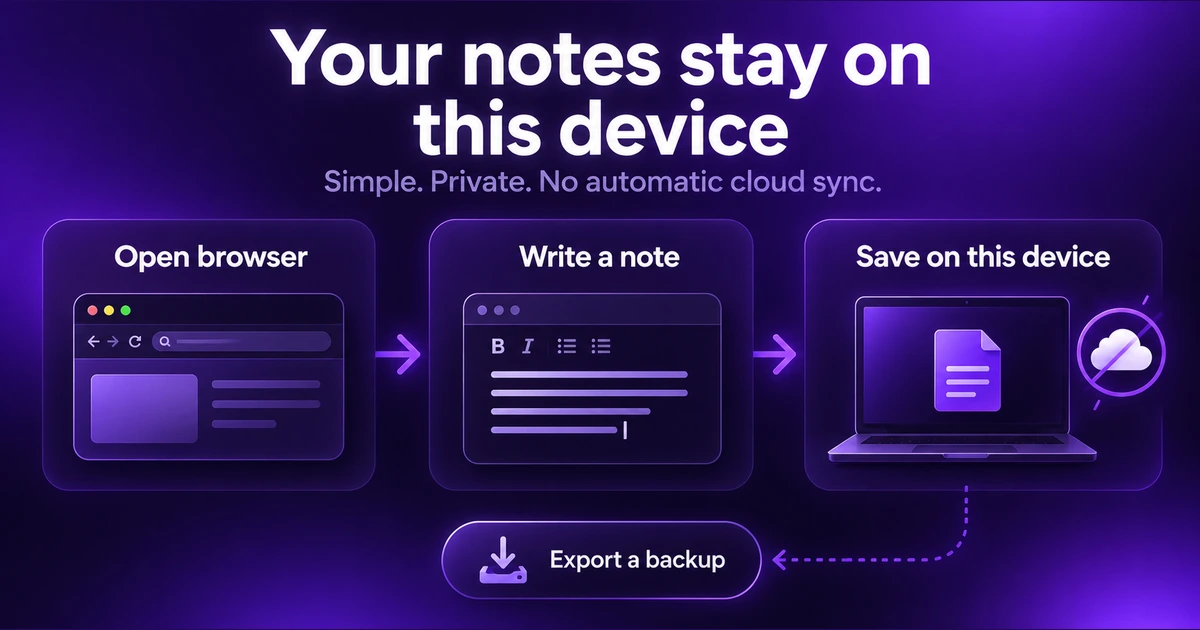
When you use Notepadle as a guest, your notes are saved in your browser's local storage – a small storage area that every modern browser gives each website, on your device. Nothing is uploaded to our servers. That has a few important consequences:
- Your notes stay on that device and that browser. Notes written in Chrome on your laptop won't appear in Firefox on the same laptop, or on your phone.
- They survive closing the tab. Local storage persists after you close the browser or restart your computer, so your notes are waiting when you come back.
- They work offline once the page is loaded. Because saving happens locally, typing keeps working even if your connection drops.
The limits of browser storage
Local storage is convenient, but it isn't a backup. Your guest notes can disappear if:
- You clear your browsing data. "Clear cookies and site data" removes local storage too.
- You use a private or incognito window. Private windows throw away their storage when they close.
- Your browser cleans up automatically. Some browsers and privacy extensions delete site data on a schedule or when space runs low.
- The device is lost, reset or replaced. Notes stored only on a device go with it.
Storage space is also limited per website. That's plenty for thousands of text notes, but it isn't designed for huge documents or images.
How to keep guest notes safe
Export a backup regularly
In Notepadle's settings you can export all your notes as a JSON backup file, and import it again later – on the same device or a different one. You can also download any single note as a .txt file. If a note matters, export it.
Don't use private windows for notes you want to keep
Private browsing is great for not leaving traces, which is exactly why it's a bad place for notes you want to read tomorrow.
Protect sensitive notes with a password
Anyone using your browser profile can open your guest notes. For private content, lock the note with a password; it's encrypted in the browser before it's stored. Our guide to password protected notes explains how that encryption works.
Watch out for shared computers
On a shared or public computer, guest notes stay behind for the next person. Either delete them (and empty the Note Bin) when you're done, or avoid writing anything personal.
When it's worth creating a free account
Guest mode is ideal for quick, single-device use. A free account makes sense when:
- You want the same notes on your laptop, phone and work computer
- You'd be upset if clearing your browser deleted your notes
- You want to share a note with someone through a link
- You're building up a long-term collection – recipes, study notes, a journal
With an account, notes are stored securely on our servers and sync across your devices, and password protected notes are still encrypted before they leave your browser. You can start as a guest and create an account later; your existing guest notes can come along.
Guest notepad vs. installed notes app
| Online notepad (guest) | Installed notes app | |
|---|---|---|
| Setup | None – open the page | Download, install, often sign in |
| Works on any computer | Yes, any modern browser | Only where it's installed |
| Syncing | No (yes with a free account) | Usually, via an account |
| Risk of losing notes | Clearing browser data | Uninstalling or device loss without sync |
For a deeper comparison, see online notepad vs. notes app.
Getting the most out of a no-sign-up notepad
- Use keyboard shortcuts. In Notepadle, Alt + N creates a new note and Ctrl + K opens search.
- Give notes clear titles. Even quick notes are easier to find with a two-word title.
- Use categories early. Personal, Work, Ideas and To-do are there by default, and you can add your own.
- Clean up weekly. Delete what you no longer need; deleted notes go to the Note Bin first, so mistakes can be undone.
Real-world ways to use a notepad without an account
Guest mode shines for short-lived, practical tasks. A few examples of how people use it day to day:
- Clipboard cleaner: paste text copied from a website or PDF, tidy it up and copy it out again without the hidden formatting.
- Call notes: keep a tab open during a support call to jot down reference numbers, names and what was promised.
- Shopping and packing lists: quick lists you'll use today and delete tomorrow.
- Drafting safely: write a long comment, form answer or email in the notepad first, so a crashed page or expired session doesn't wipe it.
- Work computers: where you can't install software, a browser tab is often the only option.
In each case the note is useful for hours or days, not years – exactly what local browser storage is good at.
What happens to guest notes when you create an account?
If you decide to sign up later, you don't have to start over. When you create a free account in the same browser, your existing guest notes can come along into the account. From then on they are stored on our servers and sync to any device where you sign in, so clearing that browser's data no longer puts them at risk. If you'd rather keep notes strictly on one device, simply keep using guest mode in that browser and export a backup now and then.
Frequently asked questions
Do I need an account to use Notepadle?
No. You can open the notepad and start writing immediately as a guest. Your notes are saved in your browser on that device. A free account is optional and adds syncing across devices.
Are guest notes uploaded to a server?
No. Guest notes are stored only in your browser's local storage on your device and are never uploaded to our servers.
Will my notes still be there if I close the browser?
Yes. Local storage persists after you close the tab or restart your computer. Notes are only lost if browser data is cleared, you used a private window, or the device itself is lost or reset.
Can I move guest notes to another device?
Yes. Export a JSON backup from Settings and import it on the other device, or create a free account so your notes sync automatically.
Is an online notepad without sign-up private?
Guest notes never leave your device, which is good for privacy. However, anyone with access to your browser can open them, so protect sensitive notes with a password and avoid writing personal details on shared computers.